The public results site
Every published tournament gets a public site at its own address. It is the thing you share, the thing that gets bookmarked, and — on the day — the thing several hundred people have open at once.
Schedule opens the tournament’s match days directly. On a phone, More opens the additional tournament pages, including announcements.
Announcements shows the organizer’s messages, newest first. The latest two also appear on Overview, with All announcements opening the full list. Each message keeps its full text and publication date; no sign-in is needed.
What it carries
- Overview — what is live and up next, the match days and, once a final has been played, the champions. The champion's and runner-up's names link to their team pages.
- Matches — every match, filterable by day, category, group, team or venue. Each card carries its day and kickoff ("Sat 10 Oct · 10:20") and its venue and pitch, so a card still makes sense far down a long list. While matches are being played, a link at the top opens the live view. Club schedule downloads one club's matches for its coaches — see below.
- Standings — group tables that update as results are entered.
- Bracket — knockout brackets that advance teams automatically. A team's name in the bracket opens its team page; the rest of the card opens the match.
- Teams — a page per team with its fixtures, results and path to the final. Switch to Clubs for a dashboard per club — see below.
- Venue (Venues when there is more than one) — where the venues and pitches are.
- My team — the teams this visitor follows.
A result saved as a walkover is labelled Walkover: on match cards and the match page in place of Full time, and in the team's match list.
It is available in ten languages and built for a phone, because that is where it is read: outdoors, one-handed, by someone who needs to know which hall to walk to.
Any extra pages you added — travel, parking, the canteen — sit in the same menu. See customizing the public page.
Following a team
Visitors follow a team with the star beside it in the Teams list; the site remembers it on that device and puts its fixtures and results first, without hunting for them each time. In the FairGame mobile app, following also turns on push notifications — a final result, a new match time, a match taken off the schedule, your announcements, and the next opponent when an adaptive round is drawn — and the app can put every followed team's fixtures straight into the phone's calendar.
This is the channel that reaches people who will never read an email from the organizer, and it costs you nothing to operate.
A club's dashboard for its head coach
A club with a dozen teams in a tournament needs someone who knows where all of them are, and which coach is with which team. Every club gets a dashboard for that, open to anyone with the link and with no sign-in: on Teams, switch to Clubs and pick the club, or tap the club's name on any of its teams' pages. It is built for a phone first.
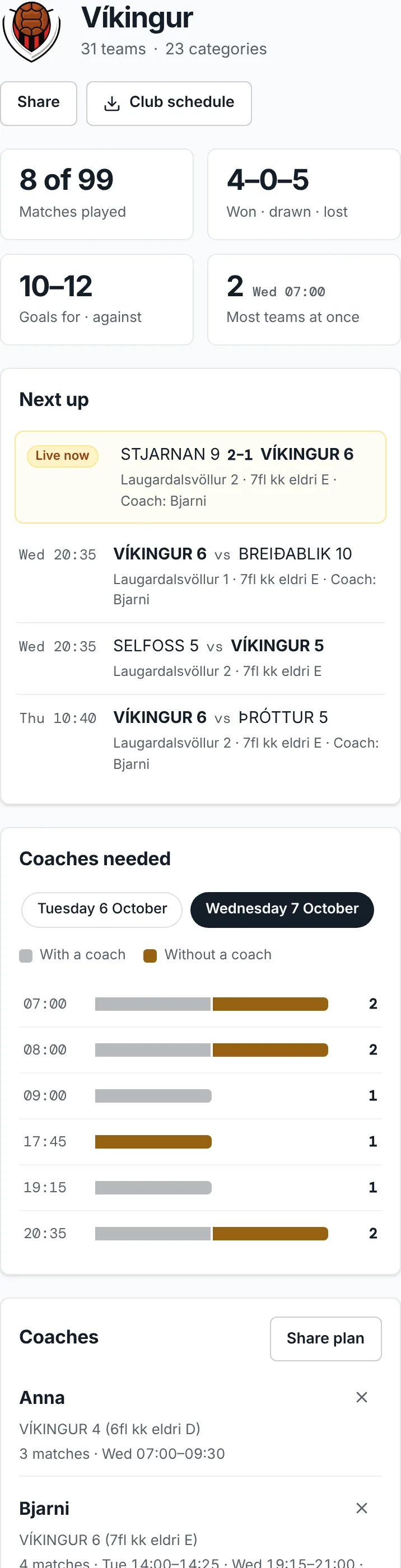
At the top are Matches played, the club's combined Won · drawn · lost and Goals for · against, and Most teams at once — the busiest moment of the club's tournament, and when it is. Below them:
- Next up — the club's matches in progress, then its next kickoffs, each with its pitch and, once you have planned it, its coach.
- Coaches needed — a bar for every kickoff of the day: how many of the club's teams are on the pitch at that moment. Tap a row to see which teams, on which pitches, until when. Each match counts for exactly its category's match length, from kickoff to the final whistle. On a tournament of several days, pick the day above the chart. Knockout matches whose teams results still decide are not counted yet; a line under the chart names their days.
- Coaches — your coach plan, below.
- Teams — every team the club has entered, by category: its group and place, its record, and what it plays next.
- Where the club plays — when the club plays at more than one venue, how many of its matches and teams are at each.
Planning your coaches
Under Coaches, type a name and choose Add coach for each of your coaches. Every team in Teams then gets a list to pick its coach from. Each coach shows their teams, their number of matches and the hours they are at the ground each day.
Two of one coach's matches that overlap are a clash — two of their teams playing at once, or a match between two of their own teams. The coach is marked with the number of clashes, Clashes lists them, and in Coaches needed the kickoff names who is in two places. Each bar there splits into teams With a coach and Without a coach, so the gaps in the day show at a glance.
The plan is not stored in FairGame. It lives in the page's address and on the device you made it on, and opening the dashboard again on that device brings it back. Share plan sends the link, plan included, to your coaches: on a phone it opens the share sheet, on a computer it copies the link. Someone who opens it sees your plan and can change it on their own device without changing yours — so after you change the plan, share the link again.
Club schedule on the dashboard downloads the club's matches, described next, with the Coach column already filled in from your plan.
A club's schedule for its coaches
A coach who staffs several teams needs one list of their matches, with room to write who covers each one. Club schedule, at the end of the filters on Matches and on a club's dashboard, makes it.
Choose the club, and every one of its teams is ticked. Untick the teams you do not staff — a category's checkbox takes or drops all of its teams at once, so a coach of one age group keeps just that. When the tournament is played at more than one venue, pick one to get only the matches there: a coach on the upper field does not need the lower field's games.
Download Excel gives a spreadsheet with one row per match, its dates and kickoffs stored as real dates and times so the sheet sorts and filters in time order. Download PDF gives an A4 sheet, grouped by day, where matches that kick off together share one time cell marked "2 at once", "3 at once" — so you see at a glance when you need more than one pair of hands. Both have a Coach column — empty, to fill in by hand, or already filled in when you download from the club's dashboard after planning your coaches — and the club's own teams are in bold.
Knockout matches wait on results. Until the groups finish, the file lists the knockout matches your teams can reach straight from their group — "Winner Group D vs Runner-up Group C", with its day and kickoff — and the PDF prints them apart under Depends on results. A line at the top of the file, and under the download buttons, names the days whose matches results still decide, so the knockout day never reads as free. Later rounds appear once their teams are known.
The file is the schedule as published at the moment you download it. If the organizer moves a match, or the groups finish, download it again.
Pointing visitors to the app
The site nudges its visitors toward the app without getting in the way.
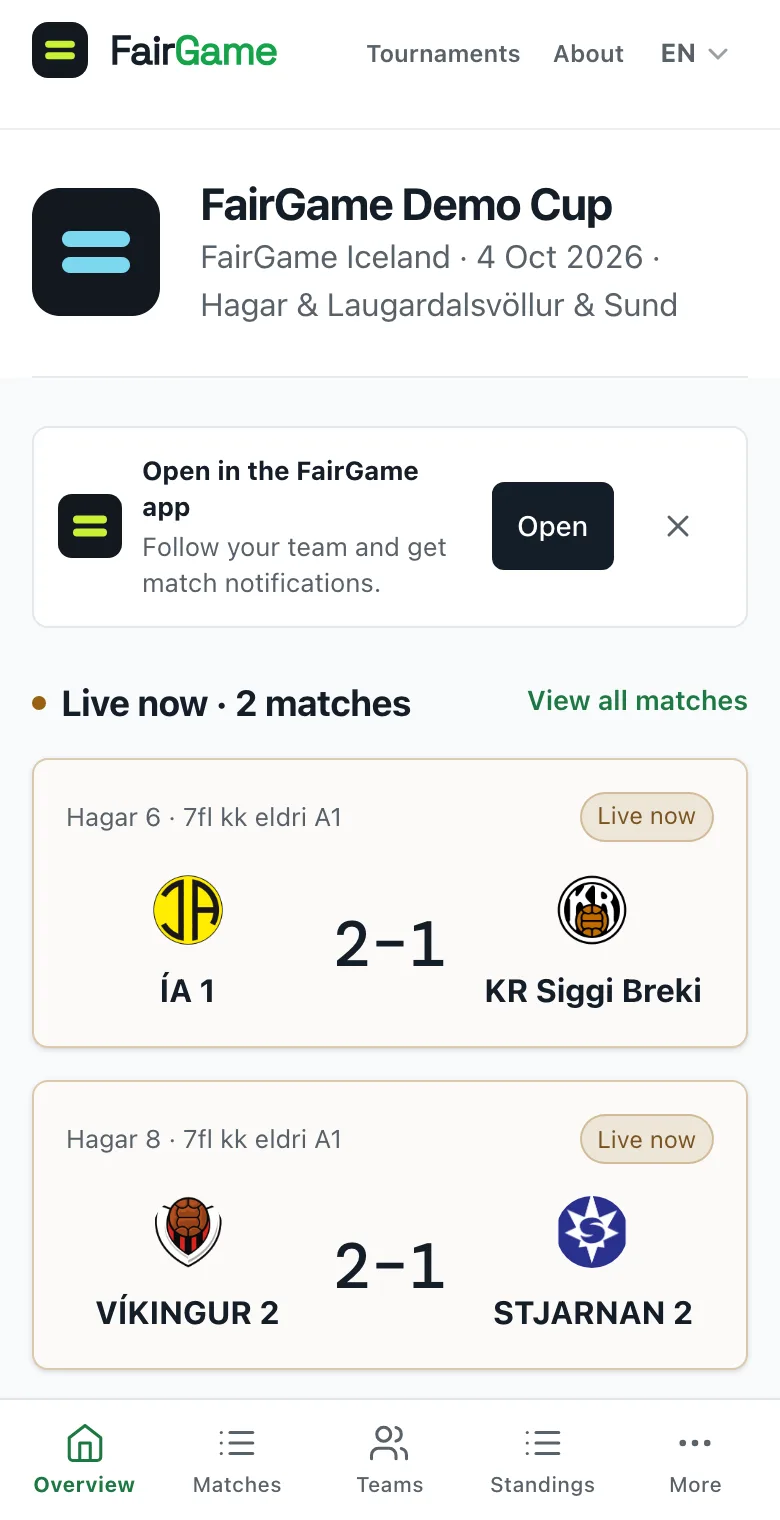
On a phone, a banner under the header reads Open in the FairGame app — "Follow your team and get match notifications." Open opens the same page in the app, or the App Store or Google Play when the app is not installed. Closing the banner hides it on that phone for 30 days.
On a computer, and on a phone where the banner was closed, a Get the FairGame app card links to the App Store and Google Play. It appears after the venues on Overview and at the foot of the other tournament pages. A visitor never sees both reminders at once, and neither appears in a draft preview.
What is not on it
The public site shows the competition, not your admin. Draft tournaments, unpublished changes, registration payments and contact details are not there, and referees are named only if you choose to.
Sharing it
The tournament's address is stable from the moment you publish, so it can go on a poster, in the registration confirmation, and in every announcement. It does not change when the schedule does.
If you have published and then discovered a mistake in the draw, fixing it in the admin app is enough — the public site is a view of the live data, not a copy that needs re-exporting.
Language and link previews
Choose a language in the public site’s language menu before copying its address. The link includes that language, such as /is/tournaments/… or /en/tournaments/…, and opens the same page in that language. Changing language keeps the current section and filters. Older links without a language still work.
Link previews use the language in the address. Tournament previews show the tournament title, its uploaded logo and the FairGame logo. If no tournament logo is available, the image uses the tournament’s initials.