The tournament list
The tournament list is the first screen after sign-in. Inside a tournament, open the tournament dropdown at the top of the sidebar and choose All tournaments, or select the FairGame wordmark, to return here; Create tournament is in the same dropdown. The list shows the selected organization’s tournaments. Switch organization only with the selector beside the wordmark on this list.
The Teams column shows the number of teams in each tournament. A dash (—) means the count is not available yet, not that there are no teams. On phones, the same details and actions appear in cards.
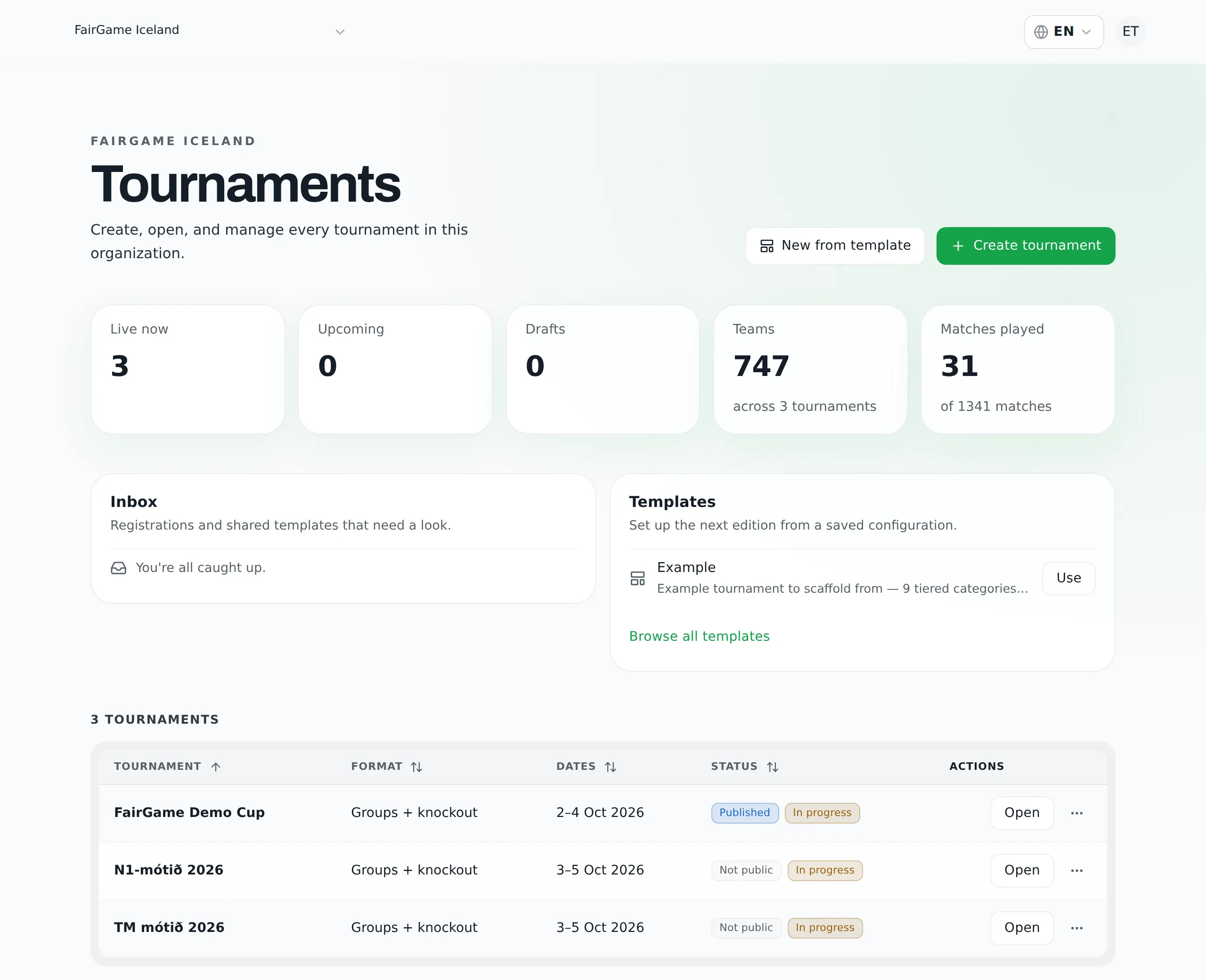
Inbox
The Inbox collects what is waiting on you:
- Team registrations awaiting review. Review opens that tournament’s Registration page directly — see registration.
- Templates other organizers shared with you. Add puts one in your template library; Dismiss leaves it.
Creating a tournament
Create tournament asks how you want to set it up:
- Guided setup — the step-by-step wizard described in your first tournament. Recommended.
- Manual setup — one form (name, public link, sport, format and dates) creates a blank tournament, and you add teams, venues and the schedule yourself.
New from template starts from a saved template instead — see reusing a setup.
Status
A draft tournament shows only Draft, regardless of its dates: it never also shows Upcoming, In progress or Ended. Other tournaments can carry up to two badges. The first says whether the public can see it: Published or Not public. The second says where it is in its calendar: Upcoming, In progress or Ended from its dates, or Completed once finished. A cancelled tournament shows a single Cancelled badge.
Row actions
Select a tournament’s name, or Open in its ··· menu, then use Settings → General to change tournament details. The menu also contains:
- Preview — open a preview of the tournament’s public page without publishing it.
- Clone — copy the tournament into a new draft (below).
- Save as template — keep its configuration in your template library.
- Delete — permanently removes the tournament with all its categories, teams, groups, matches and schedule. You are asked to confirm; it cannot be undone.
The public link is the tournament's web address. Change it after you have shared it and every link people already have — in emails, group chats, posters — stops working. There is no redirect from the old address. Settle the link before you publish.
Unfinished setups
A tournament still in the guided setup appears in the list as a draft with Resume setup. Select its name or Resume setup to return to the step you left. Discard in its menu removes the unfinished tournament and the answers saved with it, after you confirm.
Starting a new guided setup while one is unfinished shows an Unfinished setup notice with a Resume button for each, named after the tournament, so you do not build the same tournament twice by accident. Close the notice to start a fresh one anyway.
Cloning or a template?
Clone asks for a name and a start date, then creates a new draft with the source tournament's settings, its days moved to the new start date, its venues, pitches and their availability, its categories and groups, and its scheduling setup. Teams, matches and results are not copied — you add this year's teams. You land in the new tournament straight away.
A template carries much the same configuration, but it is saved: you can reuse it for any number of editions, refine its format in the template builder, and share it with other organizers.
- Clone when you want next year's edition of one tournament and will not need that shape again.
- Save a template when the same setup will run several times, or other organizers should run it too.