What's New: Early October 2026

Our last post was twelve days ago, on September 26th. Since then most of the work has gone into what happens after the format is chosen: running the scheduler again without undoing what you already fixed by hand, deciding who wins a group when teams finish level, and keeping up with a full day of results from the desk.
This post covers four of those changes: auto-scheduling one category at a time, tiebreak rules you set per tournament, a Control room you arrange yourself, and a page for head coaches that plans who covers which match. The admin app and the public tournament pages also moved onto one design in this period, so the same cards, menus and editors now appear everywhere. A large share of the work was invisible, mainly rebuilding the server side of FairGame, and we have left it out.
Auto-schedule the categories you choose and leave the rest alone
Until now auto-schedule worked a day at a time. If one category needed scheduling again, because a team dropped out or a group was redrawn, the run moved every other category's unlocked matches on that day as well, including the ones you had already arranged by hand.
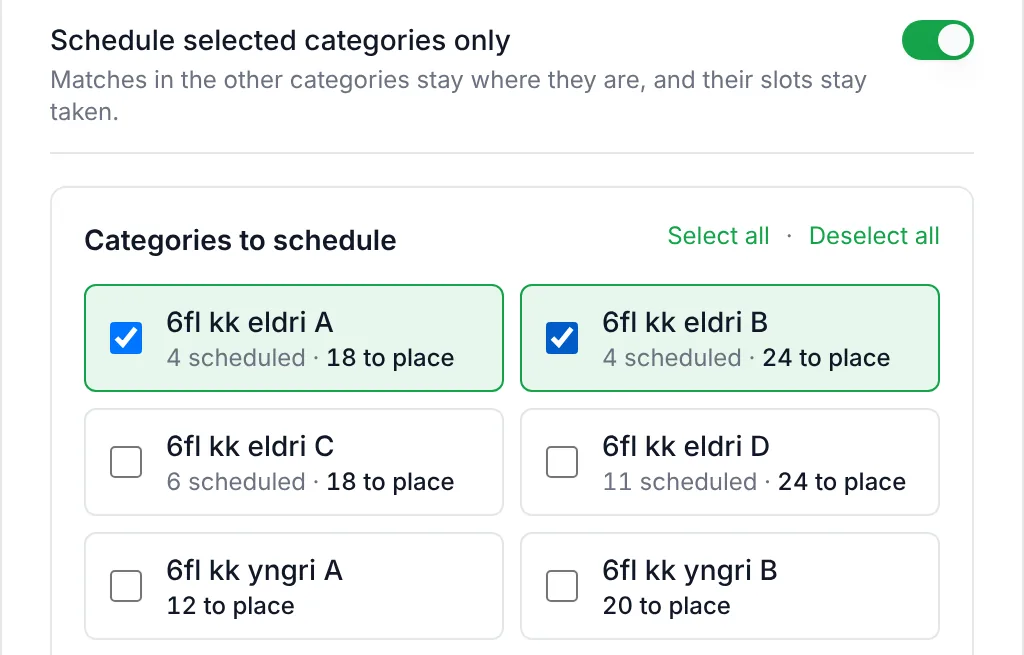
The Auto-schedule dialog now has a Schedule selected categories only switch. Turn it on, tick the categories you want placed, and only those are scheduled. Every other category is held for the run: its placed matches stay where they are, the pitch time they use stays taken, and its unplaced matches stay unplaced. Each category in the list shows how many of its matches are already scheduled and how many are left to place, so you can see what a run will touch before you start it. It works with both the standard and the advanced scheduler.
Two more choices decide where those matches go:
- Category not before, under Settings → Schedule & format → Add category start restriction, keeps a category from kicking off before a time of day, on every day or on one date. The youngest age group can be kept from kicking off before 10:00, or a category whose teams travel in on Saturday morning from starting before 12:00 that day.
- Pitch use in the dialog chooses between Spread, which uses as many pitches as it takes to finish the day early even if some teams wait longer than the minimum rest, and Compact, which gives every team the minimum rest and no longer and uses fewer pitches at a time, so the day can run later. Before, the two produced the same layout for a small Swiss pool, and a six-team pool scheduled on its own could end up on one pitch from 09:00 to 13:55 while six pitches beside it stood empty.
Swiss pools now count rest in rounds instead of minutes. A round lasts as long as the pool takes to play one, which is a different number of minutes in every category, so a rest in minutes that suited one category pushed another's matches past the end of the day. Rest between matches (rounds) in the setup wizard, or Rest between matches in Swiss pools (rounds) under Settings → Schedule & format, fits every category whatever its match length; the default is one round. The advanced scheduler keeps its own rest setting. A Swiss pool with an odd number of teams, where one team sits out each round, also plays an extra round when that lets every team play the number of games you asked for. Before, nine teams over four rounds left four of them a game short.
Your tiebreak rules, the same in every table
When teams finish a group level on points, the rule that separates them is the competition's, not ours. Settings → Schedule & format → Tiebreakers now offers three choices: the Sport default, Head-to-head first as FIFA and UEFA play it, or a Custom order where you tick the steps that count (goal difference, goals for, wins, head-to-head) and put them in order.
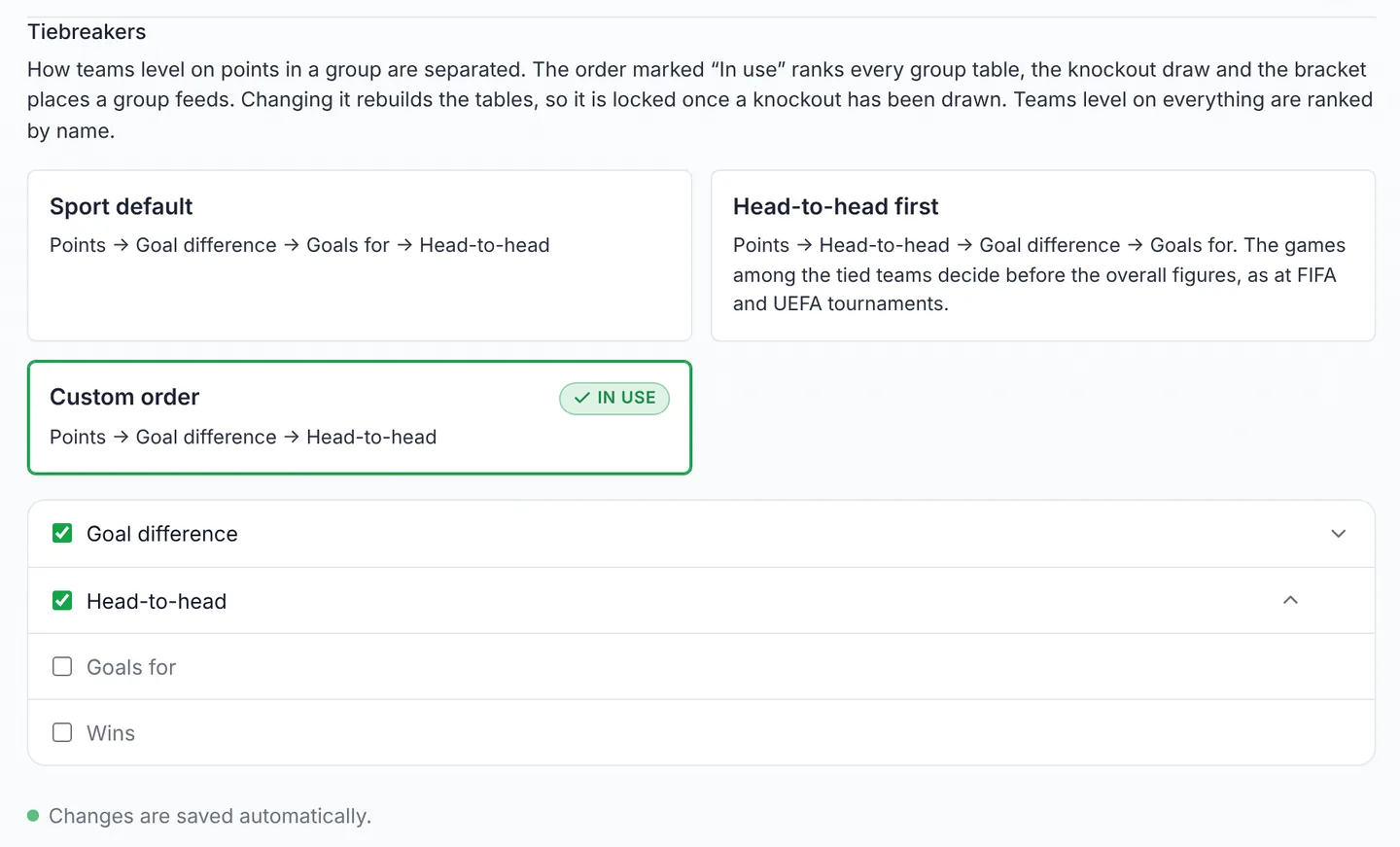
Football's default has also changed. It used to stop at goals for and order any teams still level by name. It now continues to head-to-head, the order KSÍ uses: points, goal difference, goals for, then the games between the tied teams.
Whatever you choose applies everywhere a group is ranked. Before, a full tie could put one team first in the group table while the knockout bracket advanced the other, because the two broke the tie differently. The table, the knockout draw, the bracket places a group feeds ("1st in Group A"), the public page and the FairGame app now all use the same order, and teams level on everything are ranked by name in all of them. Changing the order rebuilds every group table, so it is locked once a knockout has been drawn, and the page says so if you try.
The cap on published margins from our last post now has a second mode. Once Settings → Public page → Largest margin shown publicly is set, you choose between Only shorten the published score, as before, and Also count at most 3 goals per match in goal difference, for competitions where goals beyond the cap do not count. Fylkir's Bikarmót capped margins at 3 and expected the table to follow, and with this mode the published scores and the goal difference add up.
A desk that keeps up with match day
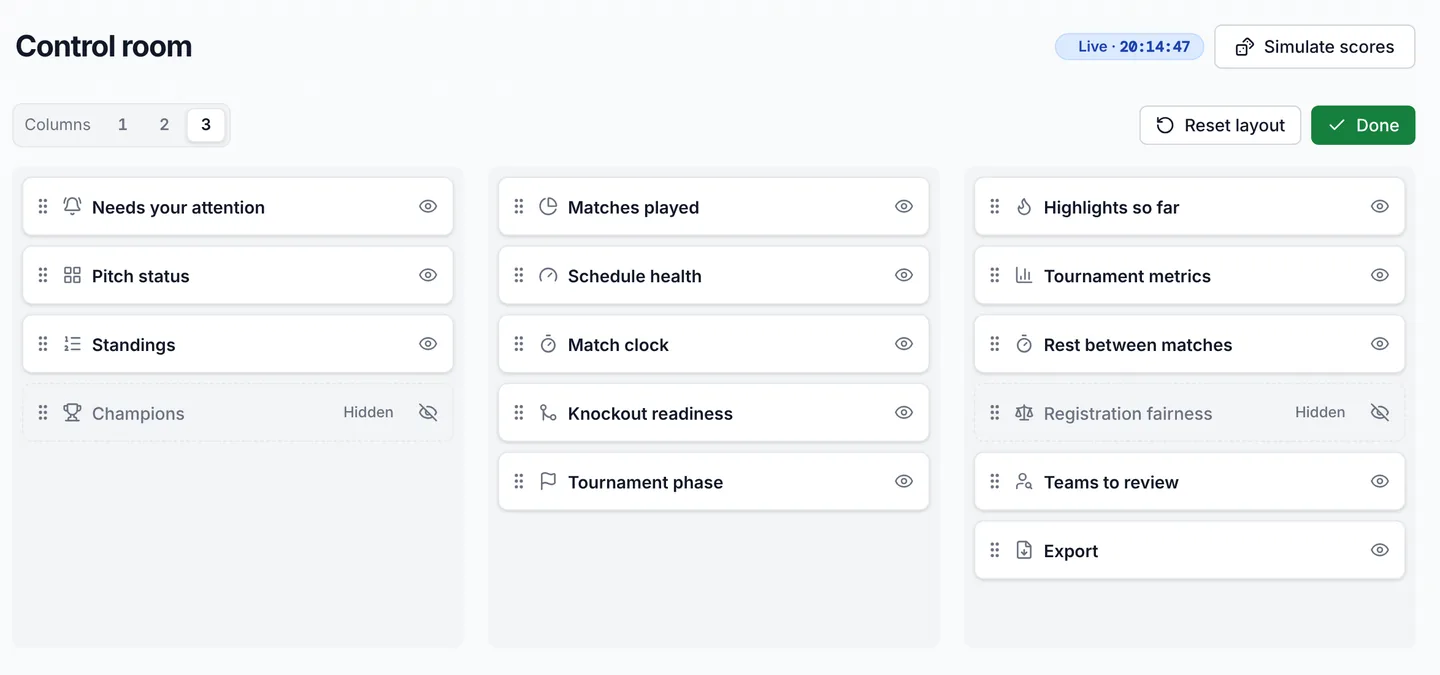
The Control room had its panels in fixed places, which left gaps beside the tall ones and kept panels on screen that a given tournament never needs. Customize in the page header folds every panel to a tile you can drag to a new place or another column. You can hide the panels you do not use, choose one, two or three Columns, and go back to the original with Reset layout. The layout is kept in your browser and applies to every tournament you open there.
The Rest between matches panel used to give only averages and extremes. It now ends in Longest rest per team, one bar per team with a line at your minimum rest, and the part of any bar past the minimum drawn in amber. The line above it counts the teams affected, for example 3 of 153 teams wait longer than the 30 min minimum, so you know who has been left standing around before their coach comes to tell you.
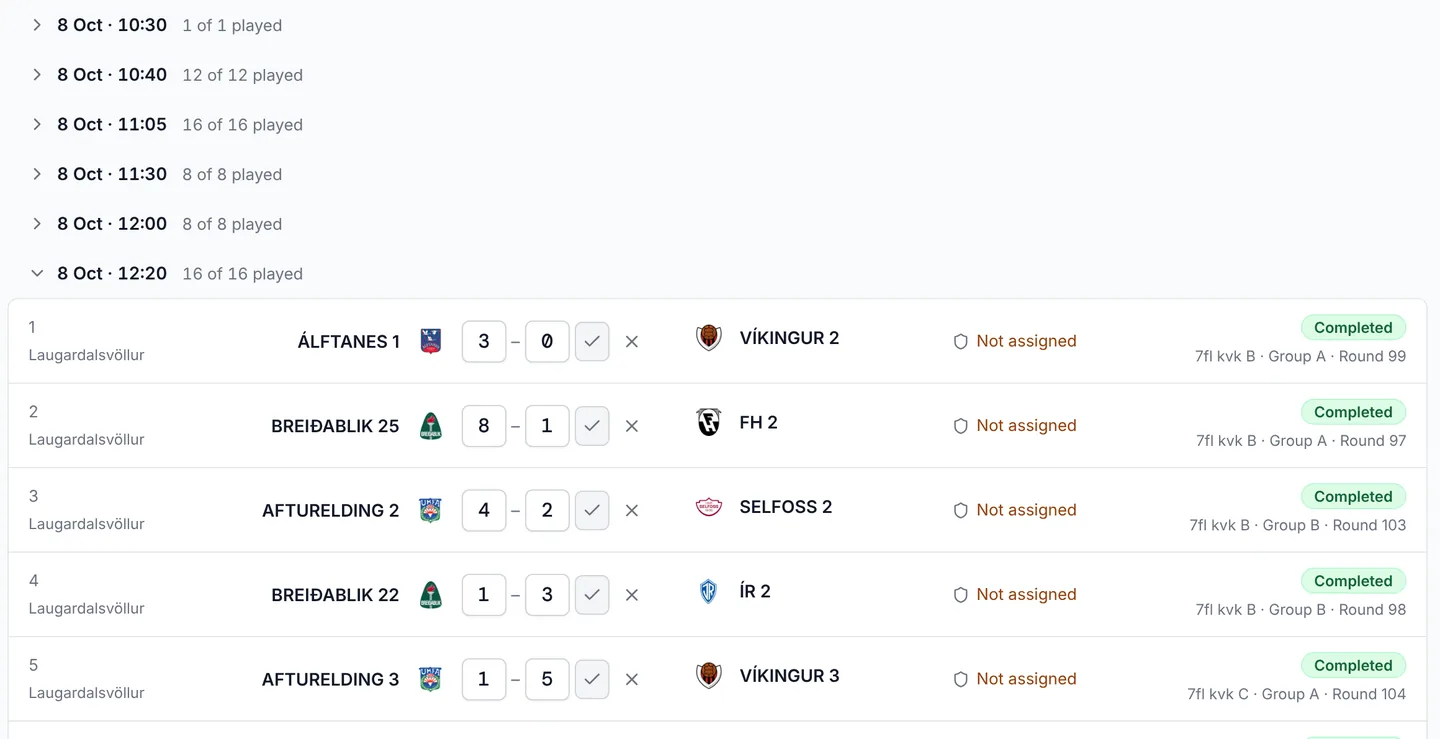
The Matches list is where results get entered from the desk, and one organizer told us they spent the day scrolling past matches that had finished hours earlier. The list is now grouped by kickoff. Each kickoff has a header line such as 8 Oct · 12:20 · 16 of 16 played, and a kickoff whose matches are all settled folds down to that line. The round just played stays open so a score can still be corrected, and so does any kickoff still waiting for a result. The list opens at the next match that needs a score, and a search opens every kickoff so nothing is hidden behind a fold.
The match clock can also play matches in periods. Periods per match in the clock's settings splits each match into halves, thirds for ice hockey or quarters for basketball, with a halftime break and breaks between periods. The breaks come out of the match length rather than being added to it, so a round lasts as long as the schedule says and the published kickoffs stay true. A 30-minute match in four quarters with 1-minute breaks and a 4-minute halftime plays four 6-minute quarters, and the panel writes the round out under the fields so you can check it before you start.
Head coaches get a page of their own
The public tournament pages were rebuilt around the same design as the admin app: the tournament's name and logo in a band at the top, tabs for Overview, Matches, Schedule, Standings, Teams, Venues and Announcements, and announcements now have a page of their own there. Public links carry their language, /en/tournaments/… or /is/tournaments/…, so a link shared in Icelandic opens in Icelandic, and a shared link shows a card with the tournament's name and logo.
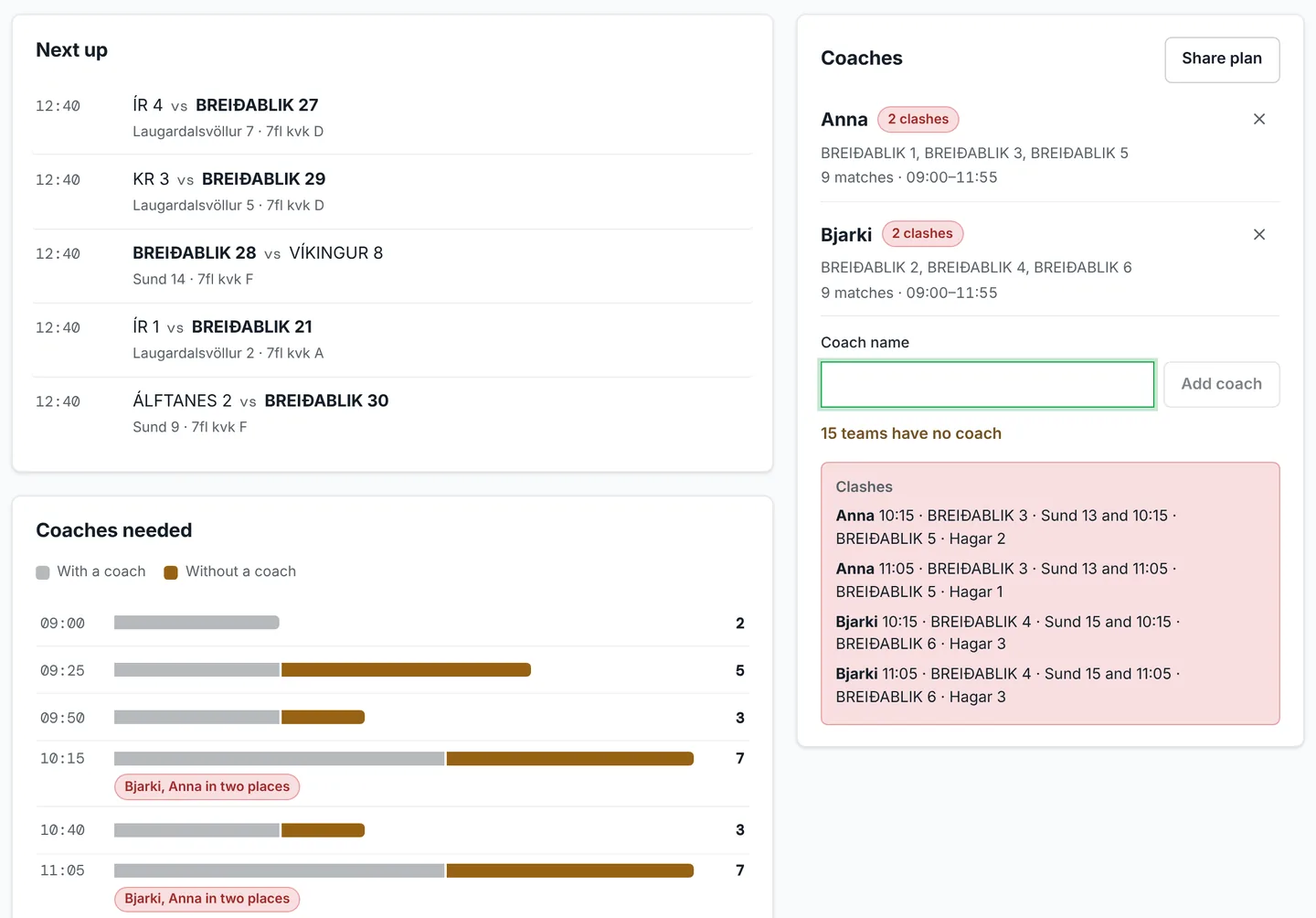
The bigger change is for the head coach whose club has teams in several categories. Every club in a tournament now has its own page on the public site: open Teams, switch to Clubs and pick the club, or follow the club's name from any of its team pages. The page shows how many of the club's matches are played, its record, and Most teams at once, the most teams the club has playing at the same time. Next up lists the club's next kickoffs with pitch and category, and Coaches needed draws one bar per kickoff for the number of the club's teams playing then.
Under Coaches, add the club's coaches and pick one for each team. Each coach then shows their teams, how many matches they have and the hours they need to be at the ground, and the page lists every clash: two of a coach's matches that overlap. The bars split into teams with and without a coach, and a kickoff where a coach is due in two places is marked. Nobody needs to log in. The plan is kept on that device, and Share plan gives a link that carries it to the other coaches.
Club schedule turns the same matches into files, from the club page or from the end of the filter row on the public Matches page. It came from a helpdesk request: coaches were copying the schedule into a document, writing a coach's name beside each match and taking a screenshot of it. A head coach picks the club (the search ignores accents, so "throttur" finds Þróttur), unticks the teams or whole categories they do not staff, narrows it to one venue if the club plays at more than one, and downloads Excel or a printable PDF.
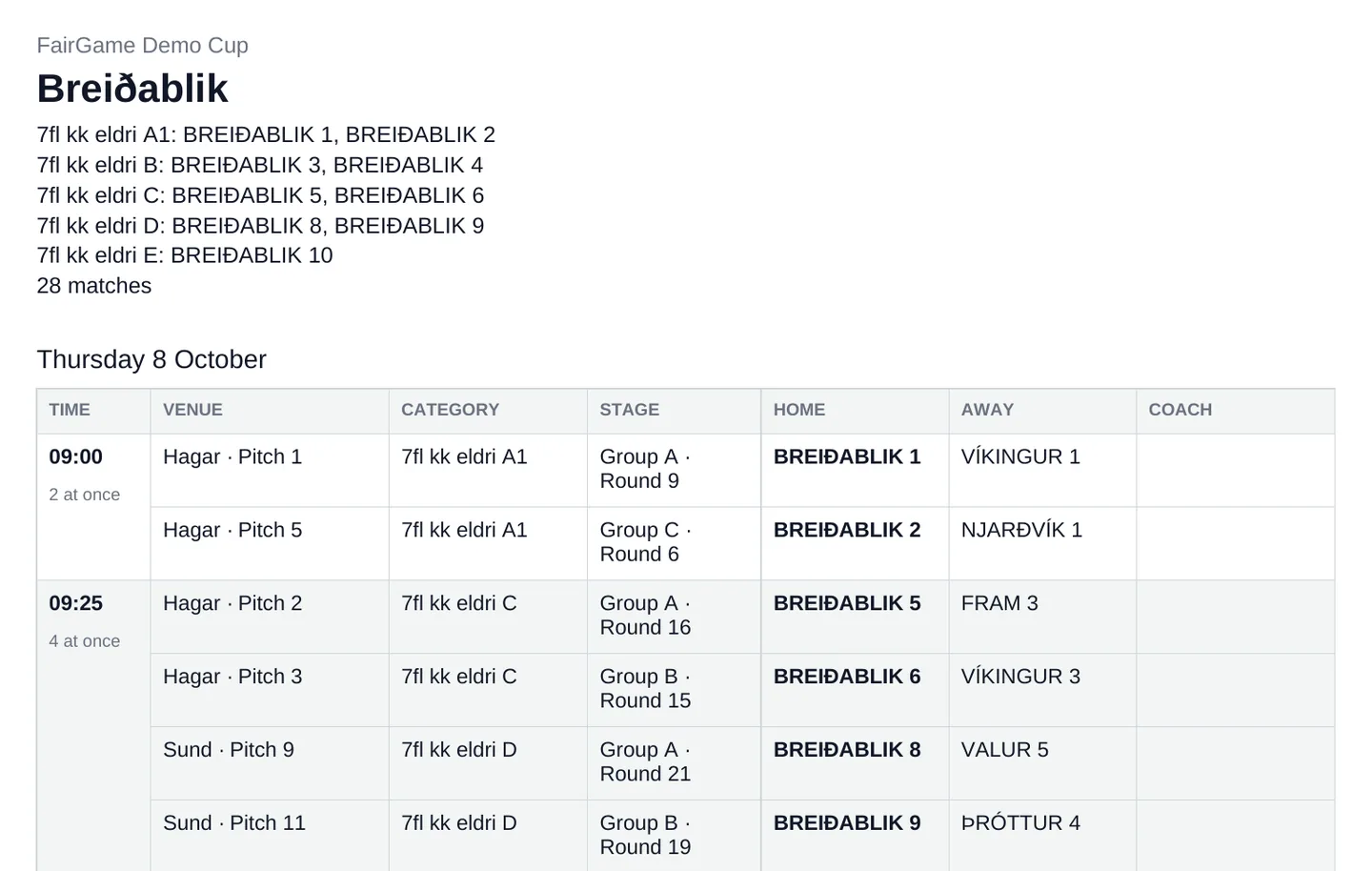
Both files have a Coach column, filled in from the plan when you download from the club page and left empty otherwise, and they put the club's own teams in bold. The PDF is grouped by day, and matches that kick off together share one time cell marked 2 at once or 6 at once, which answers the other question coaches kept asking: how many people the club needs at the ground at each kickoff. Knockout matches whose teams depend on earlier results are listed with a note to download again once the teams are known.
Organizers get the same thing from the inside. Export on the admin Matches page downloads every match in the tournament as an Excel workbook, with dates and kickoffs as real spreadsheet dates and a first line saying whether it holds the published schedule or a draft that is not public yet. Printed match cards and the score page their QR code opens now name the match properly, with category, group, venue and pitch, which matters at grounds where two venues both have a pitch called 2.
Smaller things that add up
- Delete team works from a team's page or from its row on the Teams page, also when the team has fixtures that have not been played. The confirmation says how many fixtures go with it; a team with a played match still has to be withdrawn instead. Delete all teams removes every team that has not played in one go.
- A pitch with scheduled matches can be deleted, and its matches are unscheduled after you confirm. The pitch's page now lists its matches by day.
- On Categories, category, group and team names are links, each category and group has one menu for its actions, Add teams can create new teams straight into a group, and View matches shows a group's matches without leaving the page.
- The What's New email now arrives in the language you use the admin app in, and its links point at that language's blog.
What's next
Several things in this post started as messages from organizers and coaches: the club schedule from a helpdesk request, the folding Matches list from an organizer entering results at the desk, the counted margin cap from a tournament that expected its table to add up. If something on your tournament day still costs you time, write to us at info@fairgame.is. That is how most of this list was made.