Editing the schedule by hand
On the full-size board, the Day actions menu (⋯) in the header contains Lock all matches on this day / Unlock all matches on this day and Clear. The history icon opens the revision panel; select a saved revision to preview it before restoring. The phone keeps its existing Clear button and Auto action.
The public-page preview is in the header’s Day actions menu (⋯). Privileged users also find score simulation there; it still requires confirmation.
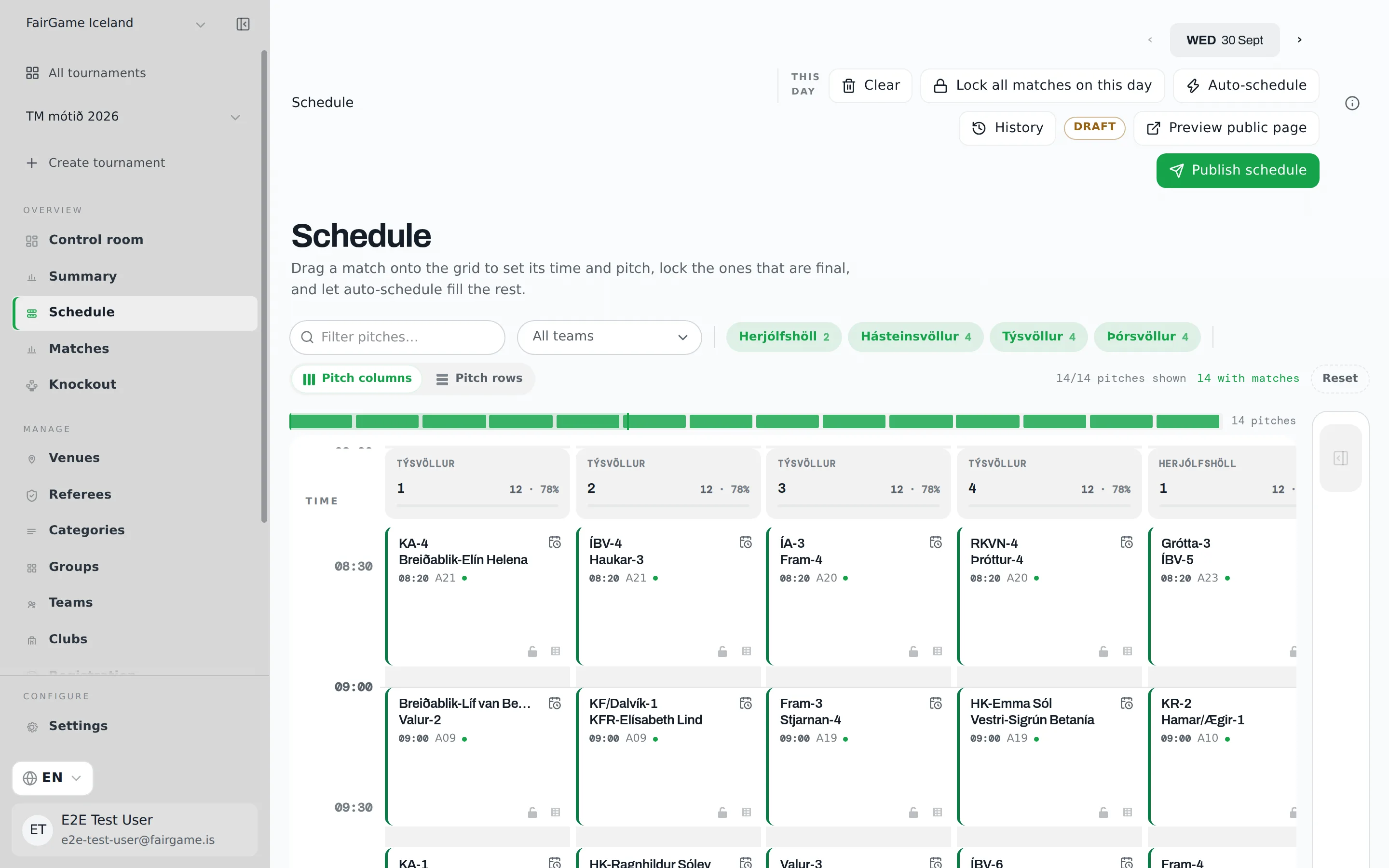
Schedule in the sidebar is the day-by-day board: pitches across the top, time running down, one card per match. Auto-schedule fills it; everything on this page is how you change it yourself — before the first publish, or on the day when a pitch closes and a coach asks for a later kick-off.
Every edit here changes your draft. The public site does not see it until you publish.
On phones, View options contains the day’s usage statistics and Clear action. Clearing still requires confirmation. Venue and pitch selectors appear when there is a choice; the selected pitch and venue remain identified above the timeline.
Reading the board
For tournaments lasting one to three days, choose a date tab in the header. Longer tournaments retain the bounded date picker and day arrows. Each pitch column shows how many matches it holds and how much of its open time is booked. When the tournament has more than one category, each match card also names its category, cut short with an ellipsis on a narrow card; on a narrow card it is the kick-off time that gives way, since the card's row already shows it. When a tournament runs across more than one venue, each venue's pitches sit together, with the venue name above each pitch name, so two pitches called 1 never read as the same pitch.
On the full-size board, match cards show their current status with a coloured pill and a distinct icon. Scheduled matches are blue, matches in progress amber, and completed matches green. Awarded results read as walkovers. Short or narrow cards, the dense layout and the horizontal layout keep the status icon; hover over it to read the label.
The Unscheduled panel holds every match still waiting for a slot, with a search for team, group or category. A fixture whose round is already known reads Group A · Round 3, and the panel lists those by date, then round — so you can place round 1 before round 2.
View options reveals venue filters, layout, pitch counts, Reset, and scheduler details. At least one venue stays visible. An active-filter cue remains visible when these options are closed. With pitch columns, opening these options also reveals the clickable pitch overview for navigating a wide board.
All teams picks one or more teams; search by team or category. Their matches stay in full colour while every other match fades, the Unscheduled panel lists only theirs, and the bar counts their matches on the day. The faded matches keep their slots, so a taken slot never looks free.
Moving matches
- To place a match, drag it from the Unscheduled panel onto an open slot.
- To move a scheduled match, drag it to another open slot.
- To swap two matches, drop one onto the other. While you drag, the matches you could swap with are tinted, and the one under the pointer is marked as a swap before you let go.
- To take a match off the schedule, drag it back onto the Unscheduled panel.
A drop that cannot work is refused with a short message saying why: the slot is outside the pitch's open hours, it is held by a locked match, it would overlap another match on that pitch, or the match in it has kicked off or finished — live and completed matches cannot be moved or swapped. An unscheduled match cannot be dropped onto a taken slot; drop it on an open one.
If a placement leaves a team less than the tournament's minimum rest, a Tight rest warning names the team and the gap. The move is still applied — sometimes a short gap is the right call — and a banner above the board keeps counting the teams below the minimum on that day until you space them out. A Swiss pool's teams rest in rounds, not minutes, so neither the warning nor the banner counts them.
A team that its category's draw left out has no match to place, so it never appears on the board. A banner above the board says so instead — 1 team in 6.kk has no group and no matches — and Organize groups opens the groups page, where the team waits under Unassigned until you place it and generate its fixtures. A category imported with no groups and too many teams to play as one group (more than eight) counts the same way: while the tournament has no fixtures at all, the empty board reads Your teams are in — now organize the groups and its button opens the groups page instead of the fixture generator, which would refuse such a category.
If someone else edits the schedule while you have it open, the board says Your view is out of date. — Refresh loads their changes before you make yours.
Editing a match's time and pitch
The calendar button on a match card — or a double-click on the card — opens Edit schedule: a date, a start time and a pitch. Use it for a move the grid cannot show, such as a match to another day or a kick-off between slots. It refuses a pitch that is not available for the whole match at that time, or a time that overlaps another match on that pitch. A locked match has to be unlocked first. When two venues number their pitches alike, each pitch in the list carries its venue's name — 2 / Miðheimar rather than a bare 2 — and the list runs venue by venue, so you can see which venue a move sends the teams to before you save.
Locking what is final
The padlock on a match card is Lock match / Unlock match. A locked match cannot be dragged, swapped or edited, and it stays exactly where it is when auto-schedule runs again or when you clear the day. Lock a final with a fixed kick-off, a fixture a club has already travelled for, or anything you have promised someone.
Lock all matches on this day, in the header, locks every scheduled match on the day at once — the quickest way to freeze a day you are happy with before re-solving another. Once everything is locked it reads Unlock all matches on this day.
Keeping published matches in place
Once the schedule is published, the Auto-schedule confirmation carries Keep published matches where they are, switched on. Every match still at its published pitch and time stays there, and the run only places what is not yet placed — a late entry, a match you unscheduled. Turn it off to let the scheduler re-flow the whole day; the confirmation then says how many of the matches it may move are already on the public schedule, so you can lock the ones that must stay. See re-solving during the tournament.
Clearing a day
Clear, in the header, sends every unlocked scheduled match on the day back to Unscheduled after you confirm with Clear this day in the dialog that opens over the board. Locked matches and matches already played stay put. FairGame saves a checkpoint first, so the cleared day can be restored from History — see changing a published schedule.
Working through conflicts
A conflict is a scheduled match whose slot no longer checks out — a mismatched pitch, timeslot or date. The Control room counts them, and its matches with a scheduling conflict item opens the Schedule board in Conflict focus: a banner says how many conflicted matches are on the day, Next conflict steps through them, and when the day is clean but another is not, a button takes you to that date. Exit focus returns to the normal board.
Knockout fixtures waiting for teams
When a bracket is drawn before the groups are played, its fixtures take a pitch and kick-off straight away. Their cards read Teams pending, and each side is named by where it comes from — Winner Group A, or Winner of Semi-final 1. Move and lock them like any other match; they keep their slot when the real teams arrive, and they cannot be scored until then.
Adaptive kickoffs waiting for a draw
An adaptive Swiss pool publishes every team's kickoffs up front and draws the opponents shortly before each round. Until a round is drawn its cards hold a pitch and a time with no team on either side: on the board, in the hover card and on the phone timeline they read Teams drawn at 10:20 — the time of the draw, with its date when that falls on another day — or Teams not drawn yet when no draw time is recorded. They arrive locked, so they cannot be dragged, swapped or edited, and clearing the day or running auto-schedule again leaves them where they are.
On a phone
On a phone the board becomes two tabs, Board and Unscheduled, with Auto between them.
- Board shows one pitch at a time; pick the venue, then the pitch. Drag a card up or down to change its time, or tap it to open its editor: nudge the kick-off Earlier or Later, pick another pitch, Lock slot, Unschedule, or enter the score. A live or finished match stays where it is, and its editor still takes the score; a live one is marked In progress on the timeline. On a finished match, Reopen takes the result off after you confirm with Clear result: the score is removed, the match goes back to scheduled, and the standings are recalculated.
- Unscheduled lists the waiting matches. Place one, then tap an open timeslot on the board — or Auto-fill the lot.
- Clear sits in the header, and Conflict focus works the same way without Next conflict.
History, Lock all matches on this day and the Edit schedule dialog are on the full-size board only.
Edits and publishing
Everything above changes the draft. Before the first publish the public site shows no kick-off times or pitches at all. After it, the public keeps seeing the last published schedule while the header badge reads Unpublished changes, and your edits go live when you press Publish changes — whose confirmation lists every match that is new, moved or removed. See reviewing and publishing.
When you publish a move or removal of a published match, everyone following either team in the FairGame Sports app gets a notification. That reaches app followers only, so announce the change as well.